Child profiles
How to give each child separate limits on a shared TV
Children can share one Android TV or Google TV without sharing one allowance. Create a tvusage profile for each child and have a parent activate the appropriate profile before their turn. Usage is assigned to the active profile; changing profiles preserves the previous child’s recorded time.
Give each child their own rule
- Create separate profiles in tvusage.
Open Settings → tvusage remote → Profiles → New on the TV. Name the child and choose Create. Configure each profile’s daily allowances and allowed hours to suit that child’s routine, rather than repeatedly changing one common rule.
- Activate the profile for the current turn.
Before the child starts watching, a parent selects their profile and chooses Activate in tvusage. Check the active profile before opening the app. tvusage does not automatically identify a viewer from their face, the remote control, or the streaming account they select.
- Switch when the next child takes over.
Activate the next child’s profile before their session. Do not delete the previous profile or create a new copy to reset the TV. Existing usage remains with its profile and is available when that child comes back.
What happens to the time?
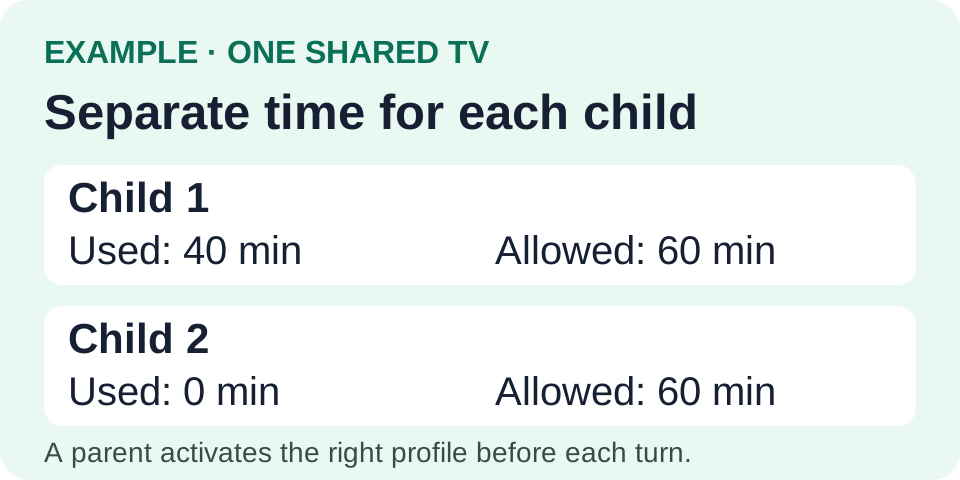
Suppose each child has a sixty-minute allowance. Child 1 uses forty minutes, leaving twenty. When a parent switches to Child 2, Child 2 starts with their own remaining allowance. Switching back to Child 1 does not erase the forty minutes already used.
When children watch together, the session is counted against the active profile. tvusage does not split the time between the people in the room. Decide which profile to use before a shared session so the usage report has the meaning you expect.
If you later add a tablet or phone, activate each child’s existing synced profile on their devices. Enable Remote and use Pro for multiple screens. The related family guide explains how to extend the setup while keeping siblings separate and each child’s device usage together.